Thursday, October 9, 2014

What happens when you select 'Create Git repository on..' in Xcode.

When you create a new project in Xcode, you have an option of selecting 'Create Git repository on..'.


    I'm still fairly new to Xcode (compared to my 15+ yrs with Visual Studio), and wondered what exactly happens. What I mean by that is by default you can't see where the Git repository was created and that's because it's hidden. Every time you select 'Create Git repository on 'My Mac'' Xcode creates hidden Git folder in the same folder as your project. To be able to see it (in Mavericks) open terminal window and type:
defaults write com.apple.finder AppleShowAllFiles TRUE
Hit Enter and type:
killall Finder
You should now be able to see the hidden Git folder inside your project:


To revert that behavior and re-hide the files type:
defaults write com.apple.finder AppleShowAllFiles FALSE
Hit Enter and type:
killall Finder
That's all.


Wednesday, August 27, 2014

Fun with Knockout - observables.

This is continuation of the previous post on knockout, so let's continue and modify the previous example to include obervable feature, i.e. when the data changes in the input box (go ahead and play with it) then the field (in this case <span>) gets updated automatically without any need for extra JavaScript code or jQuery. 


Previously I defined simple JavaScript object:
 var stock = {
            cusip: 12345,
            symbol: "MSFT",
            name: "Microsoft",
            bid: 45.92,
            ask: 46.99
        };

Let's add observable to it:
 var data = {
                stock: {
                    cusip: ko.observable(12345),
                    symbol: ko.observable("MSFT"),
                    name: ko.observable("Microsoft"),
                    bid: ko.observable(45.92),
                    ask: ko.observable(46.99)
                }
            };

Screenshots:


I highlighted the difference between creating non-observable object and observable in knockout.
Once again, fully working example posted on the JSFiddle. (note that I'm using bootstrap for nice formatting.)


Fun with Knockout - binding.

Fun with Knockout - binding. 

I started learning Knockout JS - a standalone JavaScript library that implements MVVM design pattern.
I have tons of notes and examples that I've constructed, some of them may or may not resemble to some extent those of the original authors, however they are all mine.

Ever since I discovered JSFiddle I've been trying to port, when possible, all of my examples from Visual Studio to JSFiddle for easy sharing. The first that I'd like to present is how to bind data and text fields using knockout and constrast that with binding through jQuery.

Let's create a JavaScript object to represent a stock:

 var stock = {
            cusip: 12345,
            symbol: "MSFT",
            name: "Microsoft",
            bid: 45.92,
            ask: 46.99
        };

To simply bind and display the text for cusip all we need to do is:
<span data-bind="text: cusip">
For values it's just slightly different:
<input data-bind="value: bid" />

and instruct the knockout to perform the bindings for us:
ko.applyBindings(stock);
and that is pretty much the gist of it.

 I have a fully working example posted on the JSFiddle. (note that I'm using bootstrap for nice formatting.)

Screenshots:


Monday, June 9, 2014

Calling object's property via string.

How to call object's property via its string name.


Recently, I needed a way to invoke object's property via string, instead of its real name, yes I sacrificed the compile time checking :)

What do I mean by that?

Instead of writing code like this:


class SampleObject 
{
  public Property1{get;set;}
}

SampleObject o = new SampleObject()
o.Property1 = "some value";

I needed a way to do this:

o."Property1" = "some value";

One simple (enough) way to accomplish this is by implementing an object indexer inside the class combined with reflection:

public object this[string name]
 {
   get
      {
         var properties =
            typeof(SampleObject).GetProperties(
            BindingFlags.Public | BindingFlags.Instance);

          foreach (var property in properties)
          {
             if (property.Name == name && property.CanRead)
             {
                return property.GetValue(this, null);
              }
           }           
       }

set{......}

}


and VoilĂ 

Now I can call the object via string like this:

to get value:
var myValue = o["Property1"];

to set value:
o["Property1"] = "SomeValue" // see my sample project for details.

You can download my sample project here.

Happy coding!


Tuesday, April 29, 2014

Starting with jQuery - Part 4

How to load html data from the server (Ajax style)

$(selector).load(url,data,callback) - loads data from the server and inserts the returned HTML into the DOM. 
The first parameter is mandatory, while the other two are optional.

1. Using just the first parameter: url.
    $(#FirstDiv).load('MyPage.html);

2. Using the first two parameters: url and passing in JSON data.
     $(#FirstDiv).load('MyPage.html, {author:Homer});

3. Using the url and callback function:
     $(#FirstDiv).load('MyPage.html,
        function(response, status, xhr){
          if(status == "error"){
              alert(xhr.statusText);
          }
         if(status == "success"){
             alert("External content loaded successfully!");
        }

       });

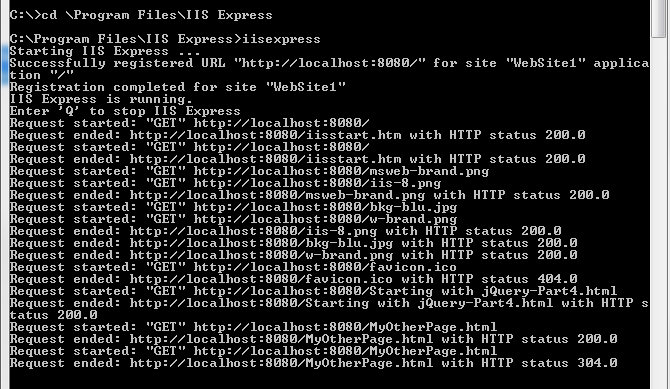
I'm including the sample files here. You can extract them and if you have IIS Express (usually comes with Visual Studio installation) you can run it without starting Visual Studio.

C:\Program Files\IIS Express\

and drop the files into the path pointed by the default website.


Good Luck!


Saturday, April 26, 2014

Starting with jQuery - Part 3


Click here to download example file

- How to iterate over html nodes:

jQuery provides us with an each function - that can be used to iterate over any collection, whether it's an object or a simple array. It iterates over DOM elements and passes current loop iteration starting with 0.

.each(function(index, Element))

There are two ways to iterate over the elements:

1.
 $('div').each(function(index){
         alert(index + '=' +$(this).text());
}


OR

2.
 $('div').each(function(index, elem){
     alert(index + '=' +$(elem).text());}

They both accomplish the same thing, the first one uses $(this), basically passing DOM element to jQuery so this refers to the current element.


-  How to modify DOM:

this.property, so to iterate through each div in the DOM tree and update the author node:

$('div').each(function(i){   this.author = "index= " + i;});

Note: There's a difference between $(this) and this:
1. $(this) - represents the jQuery object.
2. this - represents the raw javascript (DOM) object.

- How to modify attributes:

We can grab the author attribute using:

var result = $('#SomeDiv').attr('author');

If we want to modify the value of object's attributes:

$("button").click(function(){
  $("img").attr("height","50");});

$('div.FirstDiv,div.SecondDiv').each(function(index){
   this.title = 'New Title';});

OR:

 $('div.FirstDiv,div.SecondDiv').each(function(index){
     $(this).attr("title", 'New Title'); });

The first example uses raw DOM javascript object (this.title), the second example, while accomplishing the same thing, uses jQuery object and accesses title via jQuery API.

Mousing over reveals the title:


Now, if we want to update multiple values (title, style, etc.) or attributes then we can harness the power of JSON (JavaScript Object Notation) 

$('img').attr({
  alt: 'Richard Feynman',
  width: '400',
 style: 'border: 1px solid red;'
});

jQuery supports what's called a map - which is basically a JSON object with properties.
Note: the attributes above need to match the <img> attributes. 
JSON object is essentially an unordered collection of name/value pairs, self describing, easy to understand AND much faster to parse than XML - and yes, it is language independent.

The first object is delimited by the outside brackets {FirstName, LastName} - then inside we have another object that is part of the outside object - nested object with the Address:
{
 FirstName:'Jeane',
 LastName:'Waterman',
  Address:
  {
     Street: '123 Nice St.',
     City: 'Chicago',
     State: 'IL',
     Zip: 60606
  }
}

You can do arrays: (the square bracket represents an array)
{
 "employees": 
   [
    { "FirstName":"Jeane" , "LastName":"Waterman" }, 
    { "FirstName":"Dania" , "LastName":"Dates" }, 
    { "FirstName":"Tamie" , "LastName":"Rost" }
  ]
}


  $('div.SecondDiv').attr(
  {
    title: "Yet Another Title",
    style: 'font-size: 20pt; background-color:green;' 
   });

OR

 $('div.SecondDiv')
    .attr(
            {
              title: 'Yet Another Title'
            }
           )
     .css('background-color','green')
     .css('title','Yet Another Title')
     .css('font-size', '20pt');


The second example uses chaining of the jQuery properties.


- How Insert and Remove Nodes:

1. append() - insert content to the end of element.
2. appendTo() - insert element to the end of the target.
3. prepend() - insert content to the beginning of element.
4. prependTo() - insert element to the beginning of the target.
5. remove() - remove elements from the DOM.

$('#FirstTableDiv')
.append('<span style="background-color:steelblue">appended Child 1 Blue</span>');  

$('#FirstTableDiv')
.prepend('<span style="background-color:steelblue">prepended Child 2 Blue</span>'); 


To remove some rows from the table:

$('tbody.RowsToRemove').remove();  

results in:


Click here to download example file.


Friday, April 25, 2014

How to build WCF server with Windows Forms client.

A while ago I wrote a sample project: a server application that accepts incoming trade information from several different brokers. It consists of central position server, client and broker simulator.
The server was implemented using WCF while both the client and broker simulator using Windows Forms.

It's a good learning project for those interested in WCF.
The project was written and built using Visual Studio 2012
It uses WCF and as such the server (PositionServerHost) must be run with administrative privileges, i.e. run your Visual Studio as administrator.

1. Database
   a. I've used SQL Express 2012.
   b. In the Database folder under PositionServer\Database.
      I've provided both the database itself that can be attached as well scripted database objects: tables, types and store procedures.
      i.e. the database can be either attached (Right-click on Databases in the Object Explorer and attach PositionServer.mdf)
      or execute the following from \PositionServer\Database\
         1. [dbo].[OpenPositions].sql
2. [dbo].[InsertOpenPositions].sql
         3. [dbo].[UpdateOpenPositions].sql

2. To Run in Visual Studio 2012
   a. Open Solution PositionServer.sln
   b. Build
   c. Click Debug/Run

   The following projects should start automatically:
   1. PositionServerHost
   2. DemoClient
   3. BrokerSimulator

3. To Run Outside Visual Studio
   1. Nagivate to \PositionServer\PositionServerHost\bin\Debug\ , Right Click on BrokerSimulator.exe and run as Administrator
   2. Nagivate to  \PositionServer\DemoClient\bin\Debug\ ,     double click on DemoClient.exe
   3. Nagivate to  \PositionServer\BrokerSimulator\bin\Debug\ ,dobule click on BrokerSimulator.exe

4. In the Demo Client click "Connect" button to connect to the server.
   The Broker Simulator connects automatically upon hitting "Start Simulator" button.

Here's the project, enjoy!